Web App · Free
Build Your Class
Type your students once, or bring them in from a spreadsheet, and use the same class list in every Sandbox tool.
What it does
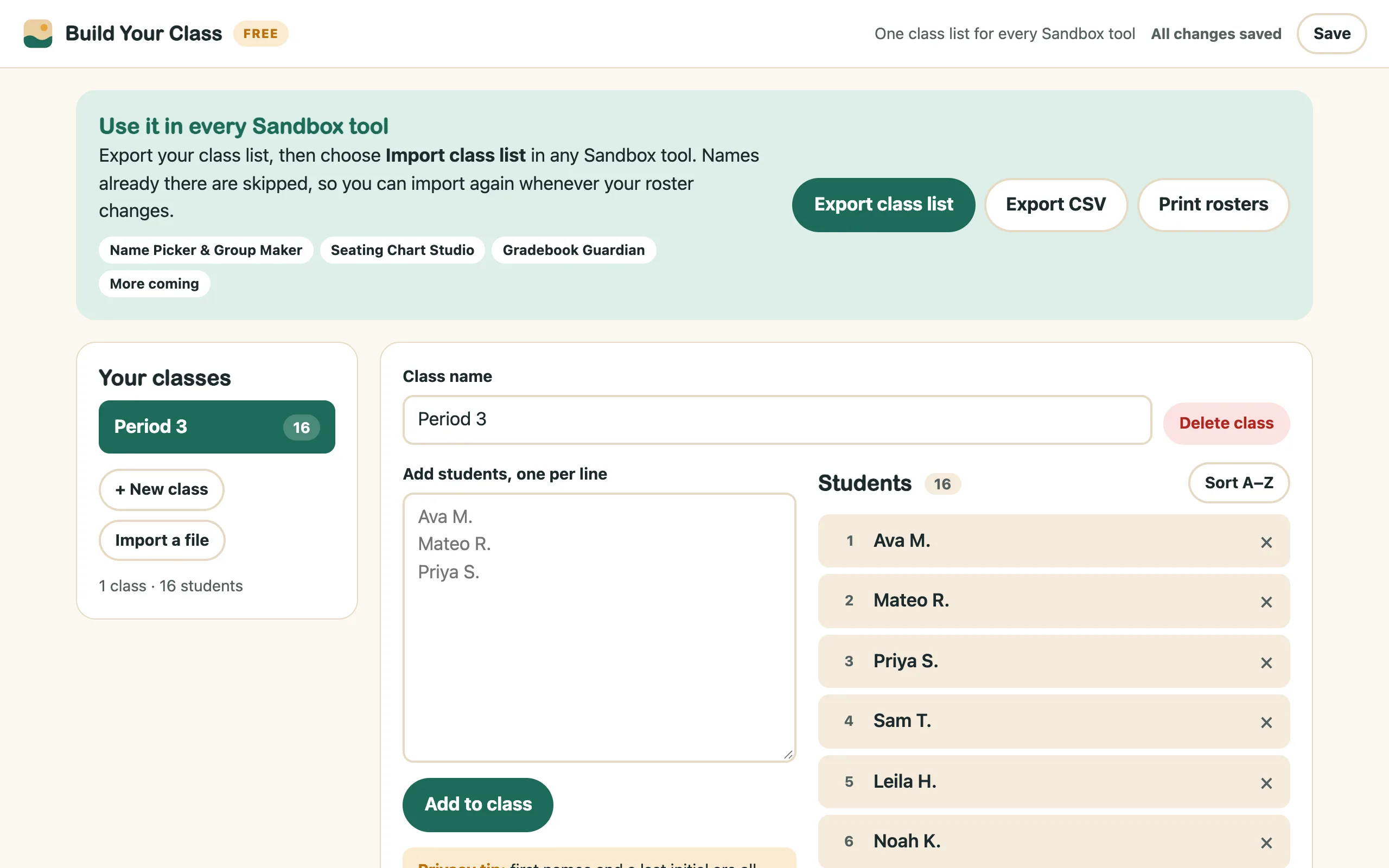
- Paste or import your rosterPaste names one per line, or import a CSV from Google Sheets or Excel. "Class, Student" or "First Name / Last Name" columns both work.
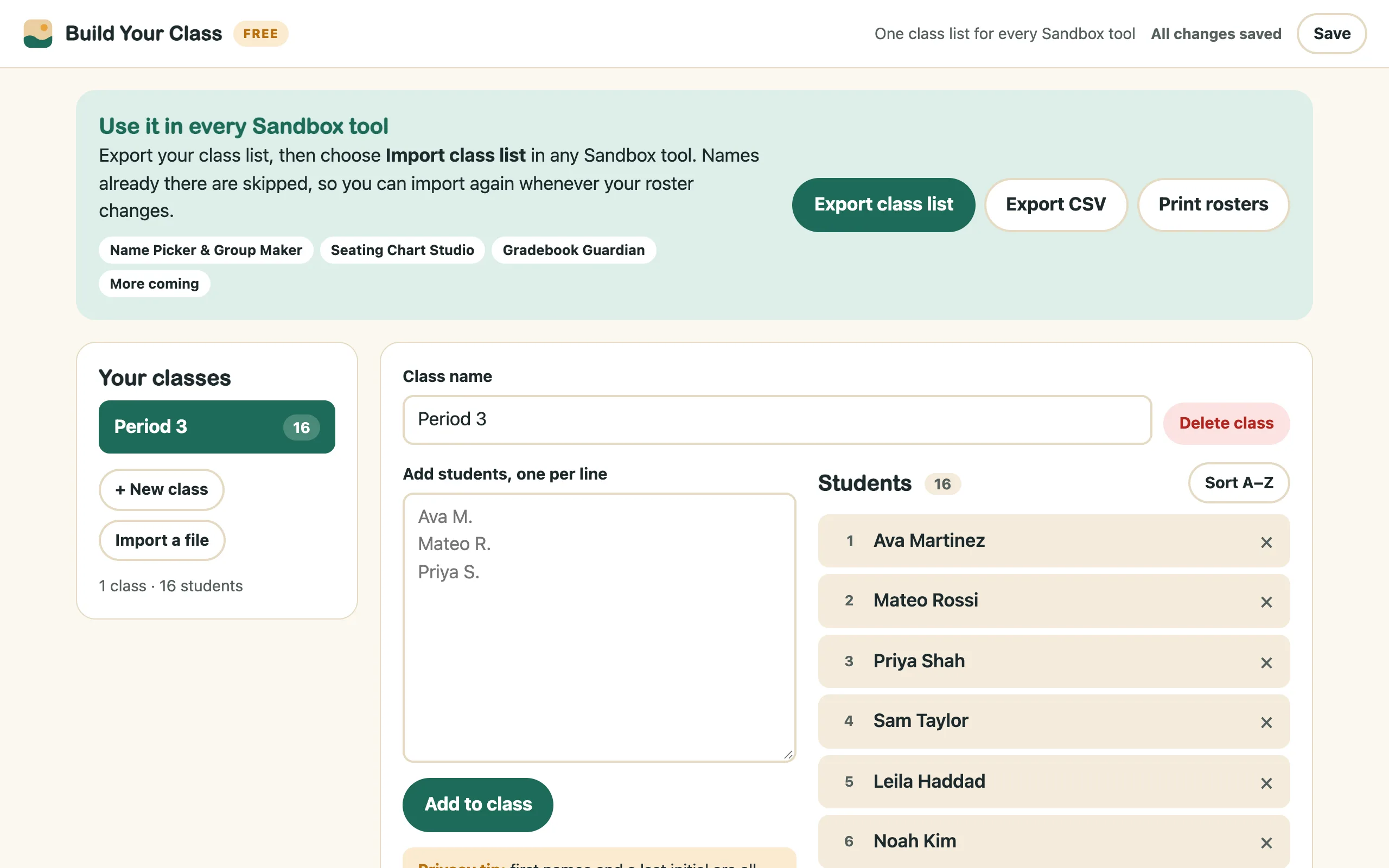
- Shorten last names in one click"Ava Martinez" becomes "Ava M." If two students would end up looking the same, it keeps their names in full. There's an Undo button too.
- One file for every toolExport class list makes a small file that Name Picker, Seating Chart Studio, Hall Pass Log, Lunch Count Board and Gradebook Guardian can all import.
- Re-import without doublingWhen your roster changes, update it here and import it again. Students already in a tool are skipped.
- Print or exportPrint one page per class, or export a CSV that opens in Sheets or Excel.
A closer look
Real screenshots of the app with sample names. Click any picture to see it full size.
How to run it
Setup takes a few minutes. Every kit comes with a one-page Quick Start guide with these steps. Prefer to watch? The video at the top of this page shows them.
- Open the appMac or PC: unzip the download, then double-click
index.html. It opens in your web browser. Chromebook: open the zip in the Files app, dragindex.htmlinto My files, then double-click it. Bookmark it (Ctrl+D, or ⌘+D on a Mac) so it's one click away tomorrow. - Add your classesType a class name and paste your students, one per line. Or save a spreadsheet as CSV (Google Sheets: File → Download → CSV) and click Import a file. A ready-made
class-list-template.csvcomes in the download. - Tidy upClick any name to fix a typo, and use Sort A–Z. Duplicate names are skipped automatically. Click Shorten last names to initials for a more private list.
- Use it in every toolClick Export class list. A small file lands in your Downloads folder. In any Sandbox tool, choose Import class list and pick that file.
The class list file holds only class names and student names, and it doubles as your backup.
Where your data lives
Everything you enter stays in this browser, on this computer. We never receive student data. The app carries a built-in browser rule that blocks it from connecting to the internet at all, and it works with Wi-Fi off.
If something looks wrong
My data is gone.
Make sure you're on the same computer, browser and copy of index.html as before. If the browser data was cleared, use Import backup with your latest backup file.
Can I import from Excel directly?
Save the spreadsheet as CSV first (Excel: Save As → CSV). The app reads CSV, TSV and plain lists, but not .xlsx files.
My district needs to approve it.
Send your IT team the Dear IT Department page. It explains how the app works and how they can check for themselves that nothing leaves the device.
More Sandbox Kits
Get every kit with the Master Key.
$99 once for every tool in the shop and every one we build after it.